Company Profile
Getting started with Island Ledger
Your business details first. Your accounts next. Follow the guide below to prepare your workspace, then add the banking and team access you need.
Start the setup guideComplete Business Settings, then finish Chart of Accounts setup. Banking and team invitations come afterward, when you need them.
Already have access? Log in to follow along. Public sign-ups are not open yet; contact us about access.
1 Required · Business Settings
Open Business Settings. Work through its three setup tabs before saving.
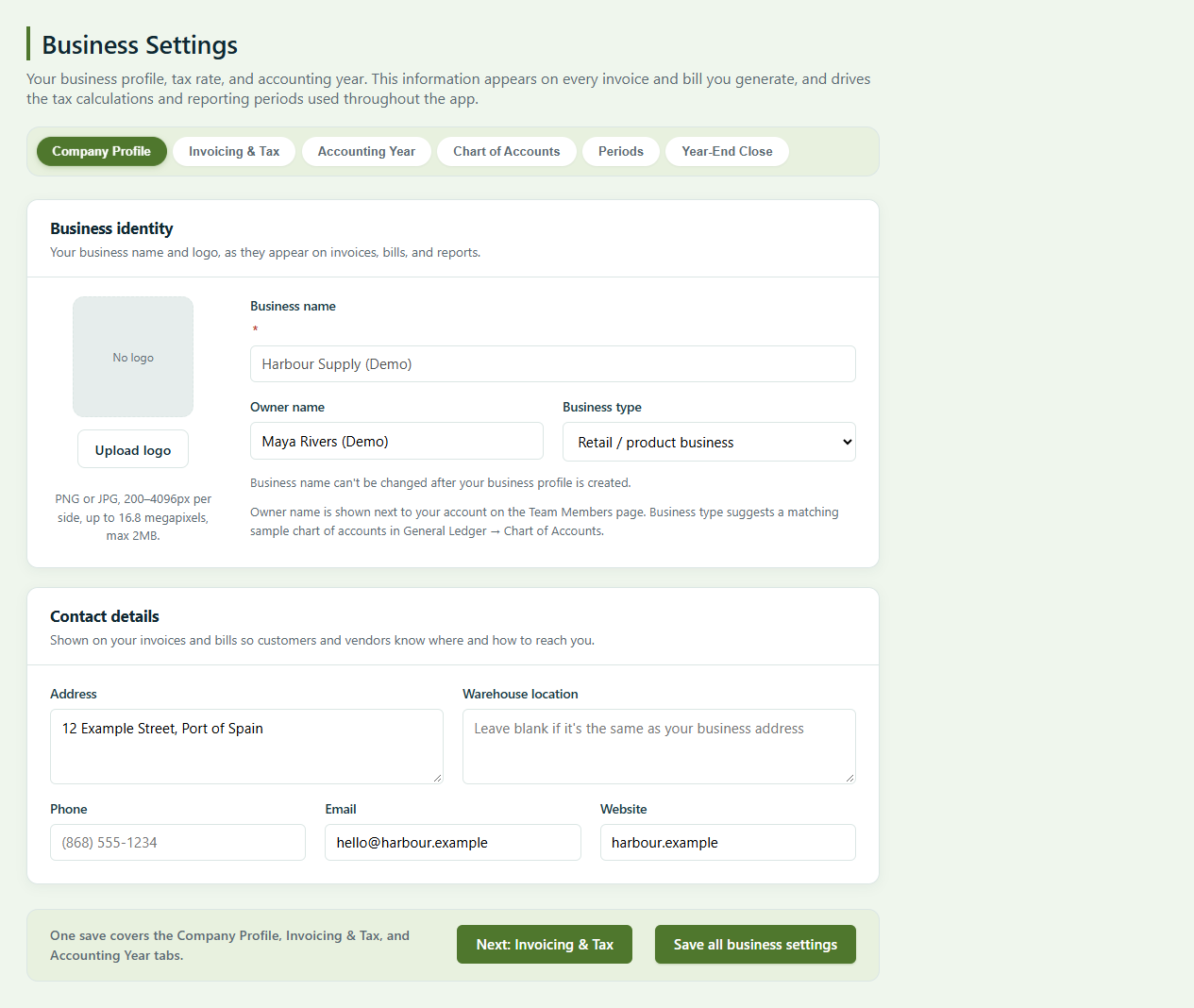
Enter your business name and choose a business type. Add your owner name, address and contact details as needed.
Example: Harbour Supply (Demo) · Retail / product business · hello@harbour.example
Choose your country and currency, check your tax label and set your invoice wording. If your business is VAT registered, tick that option and enter its tax rate and registration number. A business that is not registered does not charge VAT.
Sample screen: Trinidad and Tobago · TTD · fictitious VAT registration DEMO-000014. Use your own registration details.
Choose calendar or fiscal year and its start. The example uses January 2026. Confirm the period matches your business records.
One save covers Company Profile, Invoicing & Tax and Accounting Year. During initial setup, the app then takes you to Chart of Accounts.
Choose your currency carefully: the app locks it once your books contain postings.
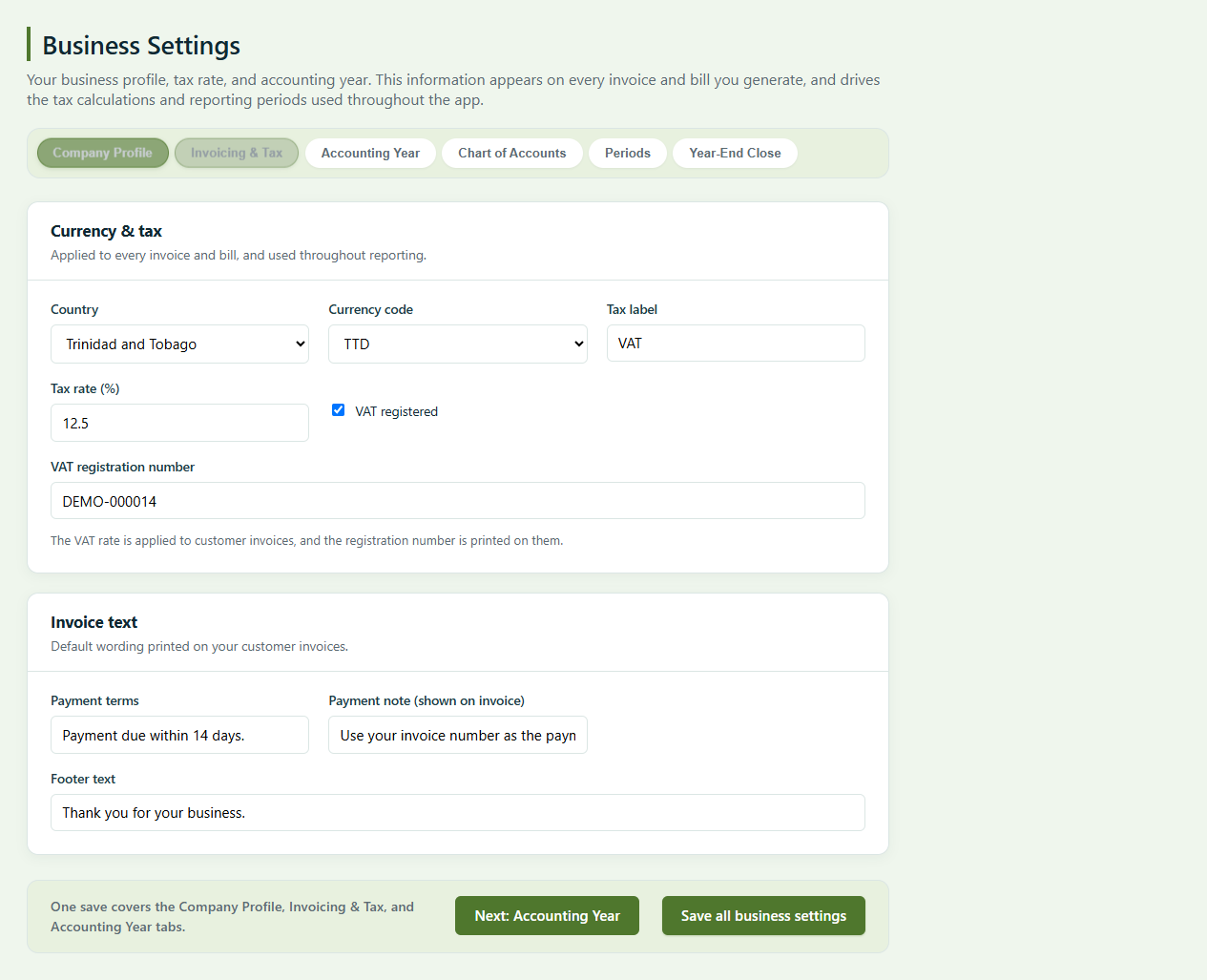
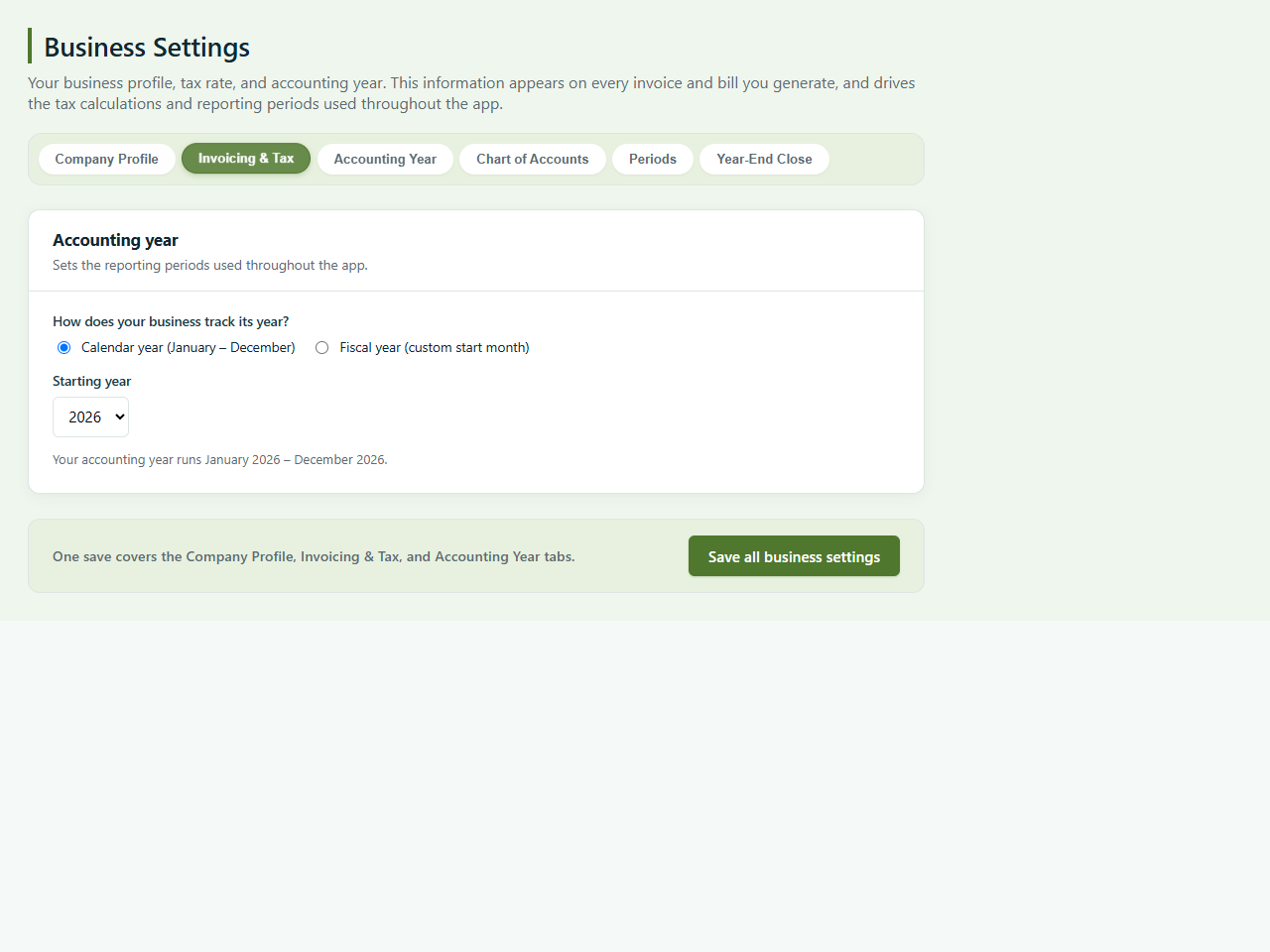
Current app screens. Fictitious business and registration details. Select a screen to enlarge it.
2 Required · Chart of Accounts
Your chart of accounts groups assets, liabilities, income and expenses. After saving Business Settings, the app opens its Import tab to help you choose.
Select a sample chart for your business type and click Choose accounts. If you already have a chart, use the CSV upload option instead.
Check the preview and tick the new accounts you want. Existing codes are skipped; similar names start unticked so you can review them. Existing accounts are never changed.
Click Add selected accounts and review the confirmation before applying. During initial setup, successfully applying the sample or upload finishes this step and returns you to the Dashboard.
The workspace unlocks after the chart setup has finished.
The initial setup also offers Continue with the basic accounts. Review its explanation and confirm Continue. You can add more accounts later.
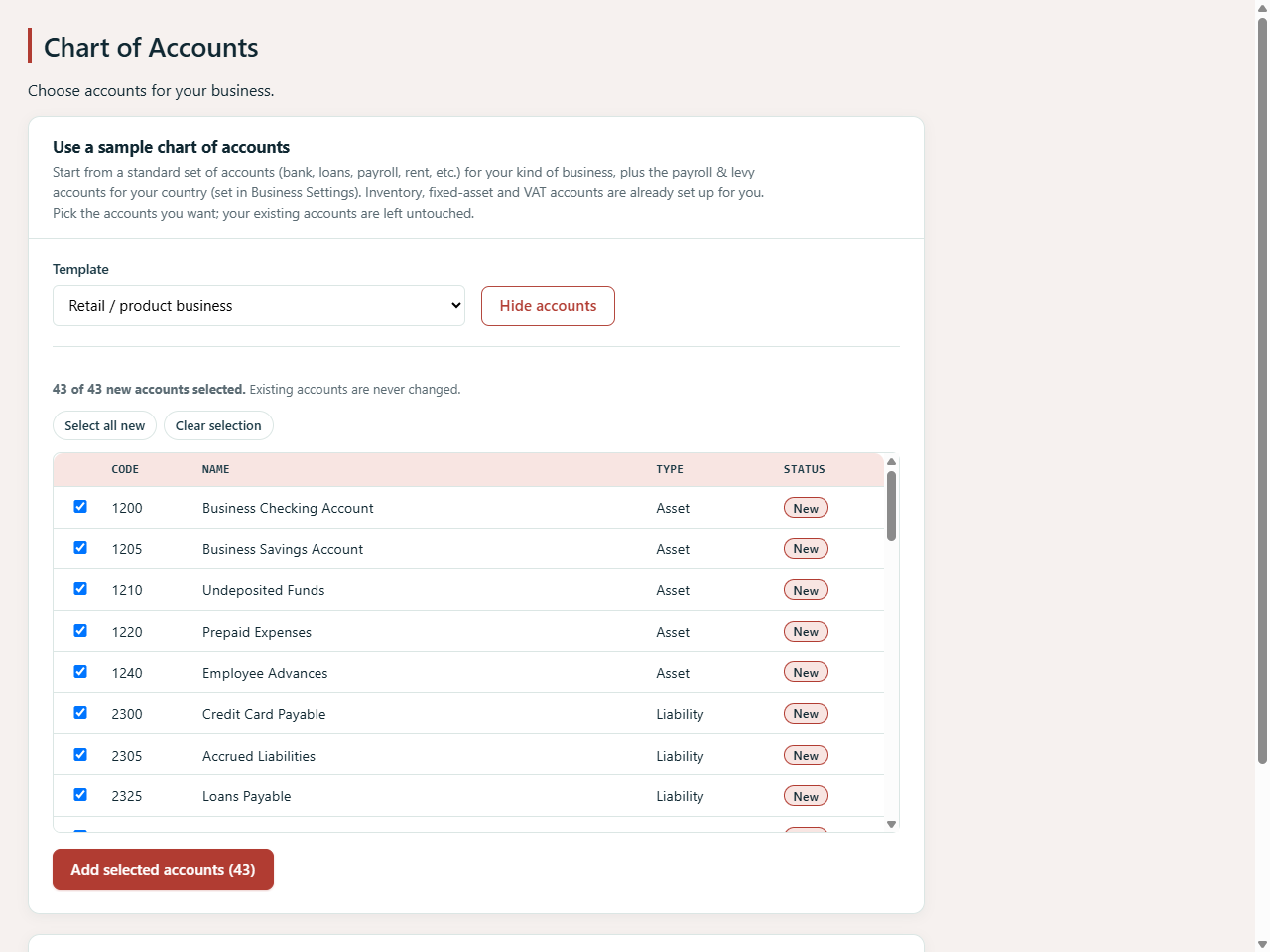
Current Chart of Accounts setup component, using the sample business type. No accounts were added during capture.
3 After setup · Banking
Open Cash and Bank Setup and its bank accounts page when you are ready to record payments against a specific account.
Give it a unique nickname. Add the bank name, choose the account type and enter the account number if needed.
Example: Harbour operating account (Demo) · Example Bank (Demo) · Checking · DEMO-000123
Link it to the appropriate cash-equivalent accounting account. The example uses 1000 · Cash at Bank. If none is available, prepare an Asset account with the Cash equivalent flag first.
Click Add bank account. The saved account appears in the list and can be selected when recording deposits or payments.
This setup links records inside Island Ledger. It does not connect to your bank or import a bank feed.
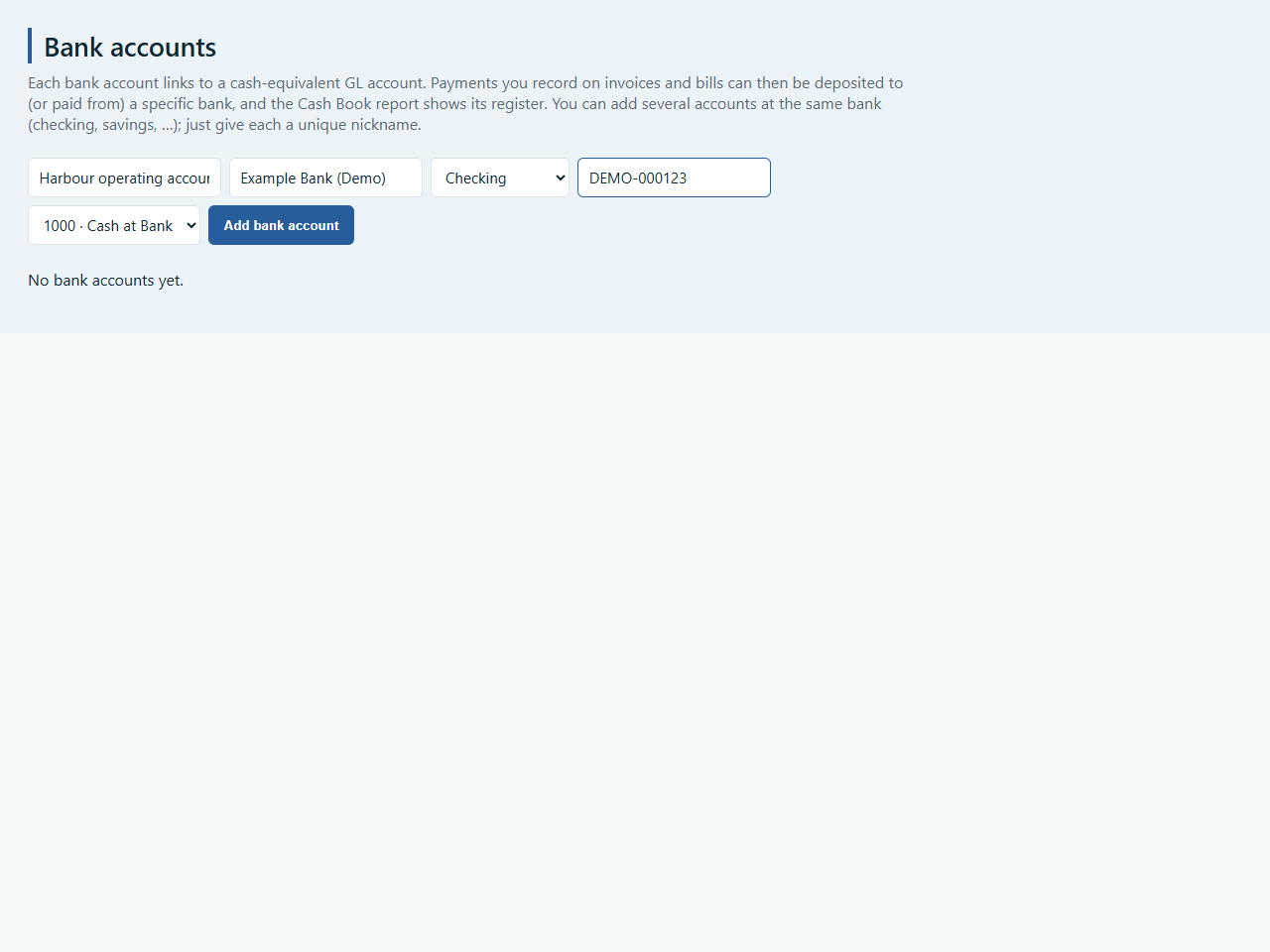
Fictitious bank and account number. This screen shows the form before saving.
4 Optional · Team access
Keep managing your day-to-day accounts while your accountant reviews your records and posts journal entries. Work together in the same books, with you choosing which parts of Island Ledger they can access.
Open Team Members. Enter their email, choose Staff or Accountant, and optionally add a display name.
Open Team Members → Seats & Invitation and click Send invitation. They follow the invitation to join your business.
On the Members tab, click Manage access. Select only the modules they need. The example gives an accountant General Ledger and Business Reports access.
New members start with no module access until you grant it. Business Settings and team administration remain owner-only. Granted access is not automatically read-only.
Currently supports two non-owner seats, including accountants. Active members and pending, unexpired invitations count; saved invitations that have not been sent do not reserve a seat.
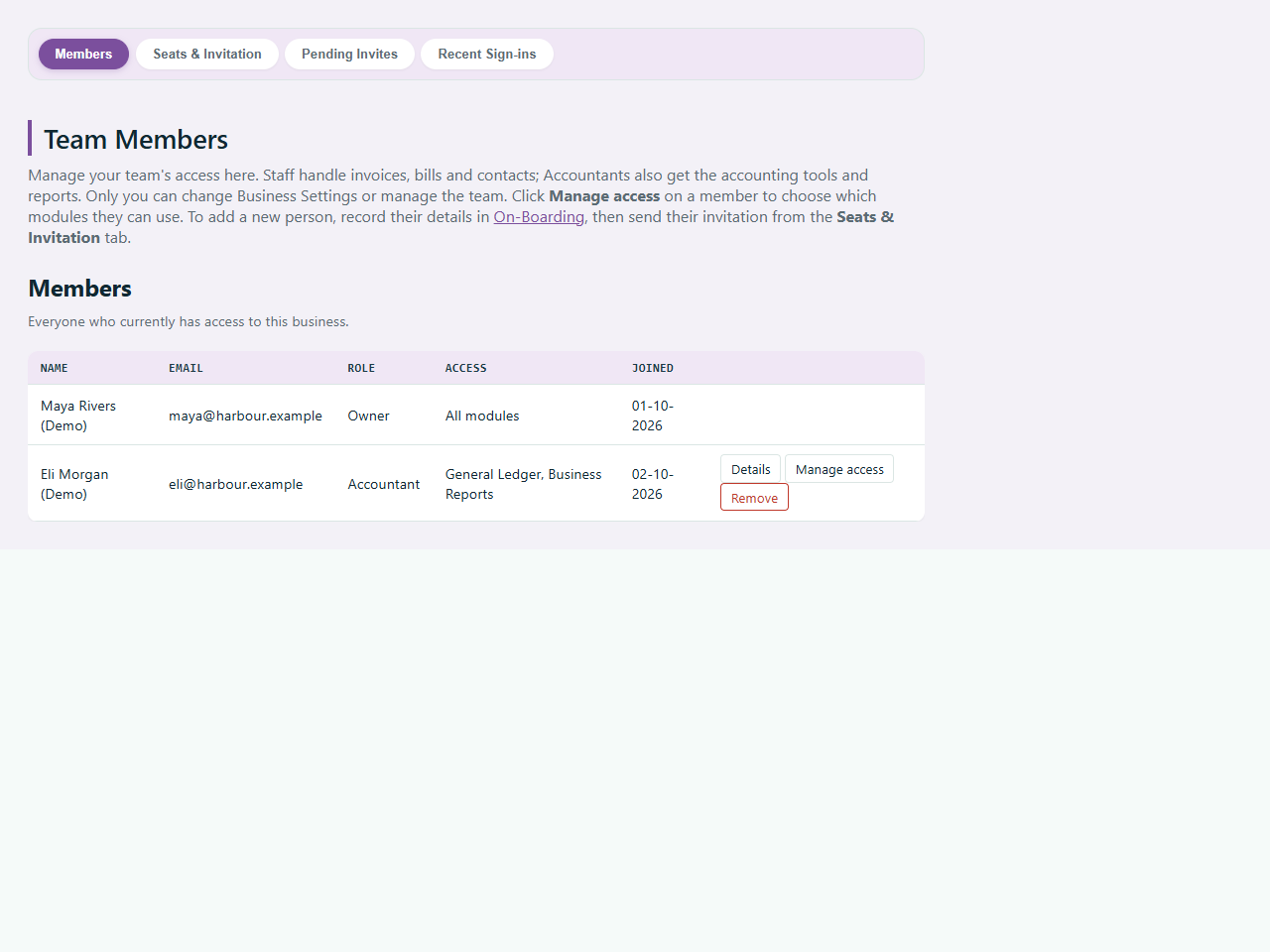
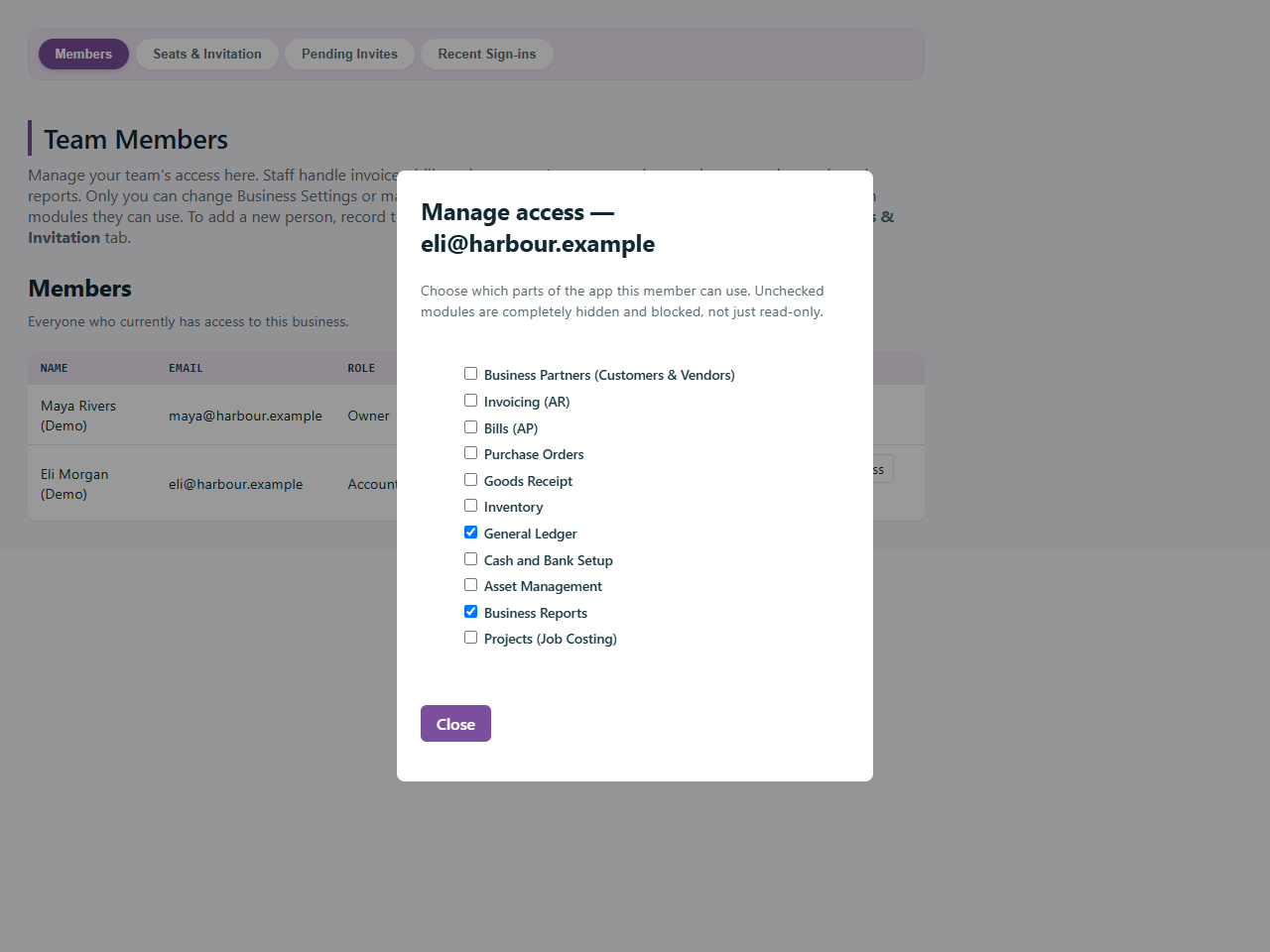
Fictitious people and example module choices. No invitations were sent or permissions changed during capture.
Ready for the next step?
You’ve seen how to set up your business. Explore the trial, what’s included, and pricing availability.