Away from your desk? Your books can come with you. Open Island
Ledger in the browser on your iPhone or iPad and sign in to the
same business workspace.
Real app screens in iPhone and iPad-style frames. Fictitious names
and figures.
Invoices that go with you
From your phone to a ready-to-print invoice.
Finished a job or delivered an order? Open your posted invoice in
Island Ledger and tap Download PDF. Your business
details, customer, invoice number, items and totals come together
in a document you can keep or print.
Open your posted invoice
Sign in on your phone and select the invoice from your
customer records.
Tap Download PDF
Island Ledger creates a PDF named with your invoice number,
using your saved business profile.
Open the PDF and print
Use your phone’s PDF viewer and printing options to send it
to a compatible printer.
Set up your business profile first. Printing options depend on
your phone, PDF viewer and printer.
Current app invoice screen and its generated PDF. Fictitious
business, customer and figures.
A clearer view of every job
Build the fence. Keep the costs together.
A fence is more than timber and posts. There are materials to buy,
labour to pay and a customer to invoice. Projects brings those
records together so you can see what the job has cost and what you
have invoiced.
Create the customer’s project
Select Palm Grove Studio, name the job “Garden fence
installation” and enter its description and start date.
Put the spending against the job
Assign TTD 5,000 in materials and TTD 3,000 in labour bill
lines to Work in Progress and select this project. Goods
received against a project purchase order can also add to
its costs.
Connect the customer invoice
Select the project on the customer’s invoice. A posted
invoice of TTD 12,000 before VAT appears alongside the job’s
costs.
Review the result and finish the job
See TTD 8,000 in costs and TTD 4,000 in project profit. When
the fence is finished and costs are recorded, complete the
project.
Project profit compares posted invoices before VAT with recorded
job costs. Completing a project closes it to new costs and moves
its Work in Progress balance to Cost of Goods Sold.
Current app Project page with fictitious customer, supplier and
figures. The example shows an open job; profit does not mean the
customer has paid.
Small ERP accounting for Caribbean businesses
Your daily operations. Connected to your accounts.
Island Ledger brings purchasing, inventory, invoicing, payments
and reporting into one accounting workspace. Follow the records
from the work you do each day to the figures in your books.
Buy, receive and pay
Keep the order, delivery, supplier invoice and payment
connected.
1
Place the order
Create a purchase order with your supplier and items. An order
records what you intend to buy; it does not post an accounting
entry.
Posted financial transactions create ledger entries with
references to their source records. Review the same books
through your Trial Balance, Income Statement, Balance Sheet and
Cash Flow reports.
Link purchase orders, received goods and bill lines to a
project. View the job's costs alongside its customer invoices,
then complete the project when the work is finished.
Payments are records of money paid or received. Island Ledger does
not move money or connect to a live bank feed.
For Trinidad & Tobago customers only · Books in TTD
VAT registered? Bring your figures together.
For VAT-registered businesses in Trinidad & Tobago, Island
Ledger connects posted invoices, bills and VAT ledger accounts
with reports shaped around the VAT 101 return. Review the
figures for your chosen period and trace them back to the
transactions.
Prepare the figures
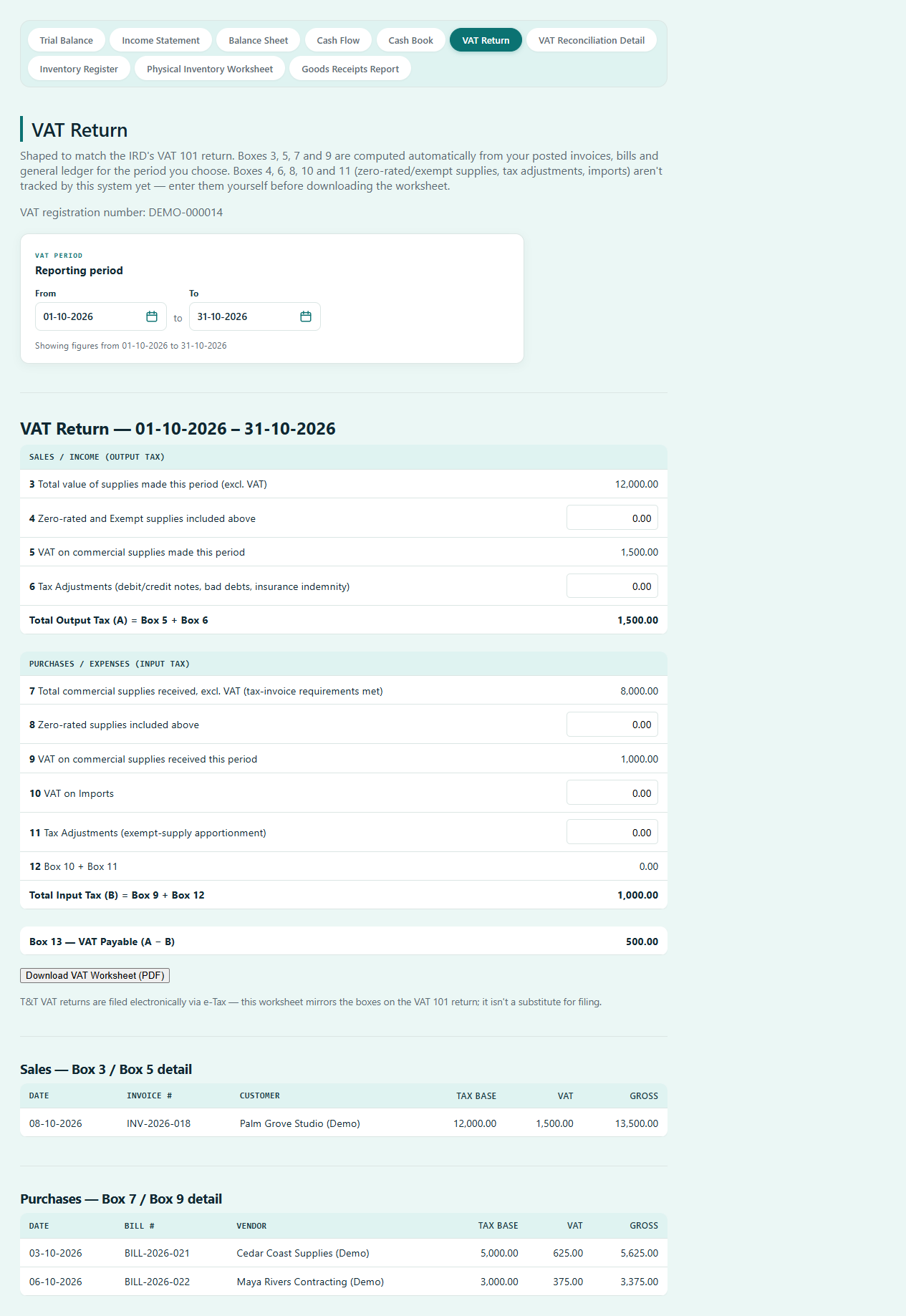
VAT Return
See sales and purchase values from posted documents, alongside
VAT totals from the general ledger. Review the automatically
calculated boxes and enter applicable manual adjustments.
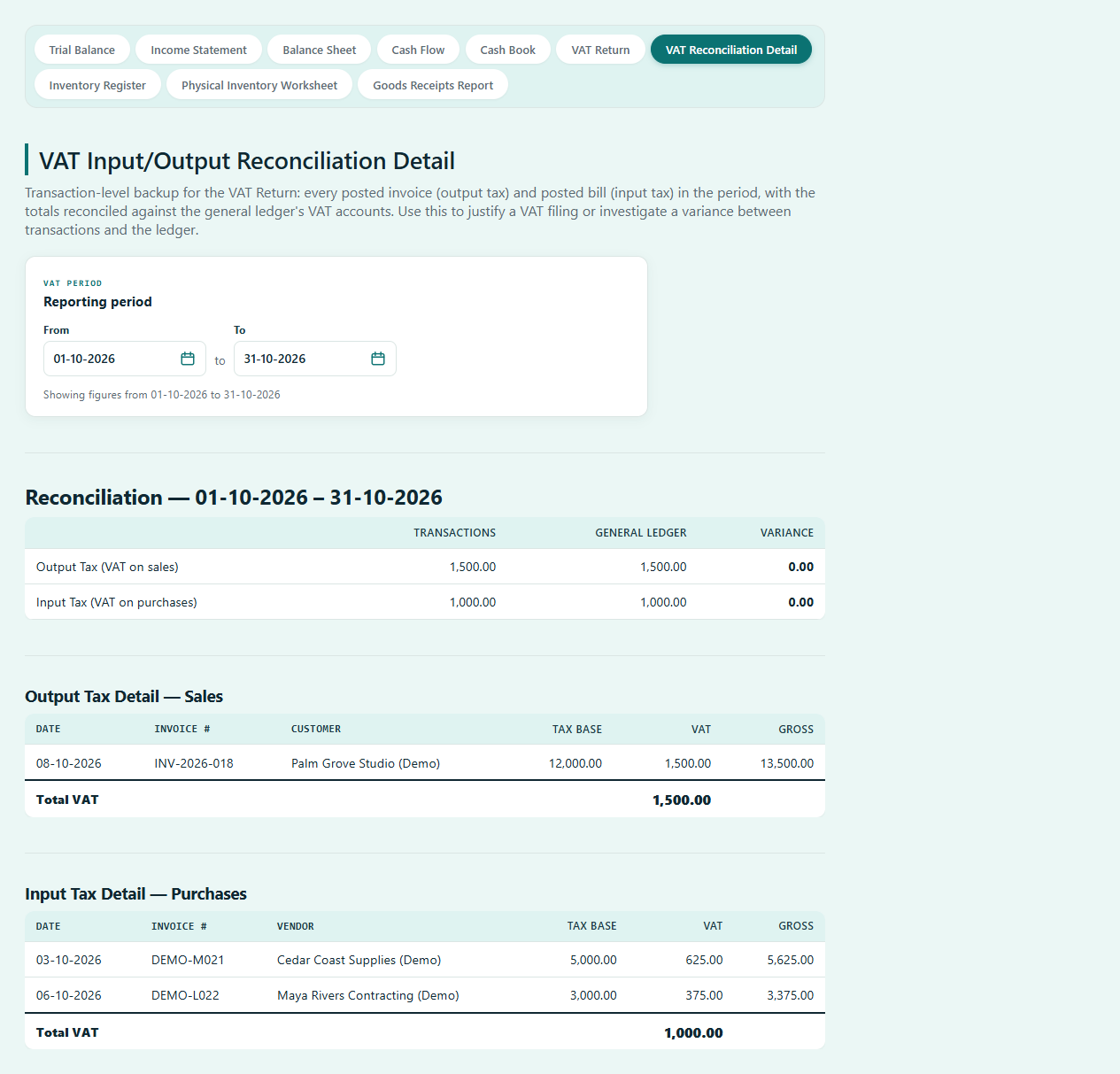
Compare sales and purchase VAT with the ledger, then review
the invoice and bill detail behind each total. A variance
points to a difference that needs investigation.
Compare transaction VAT with the ledger and investigate any
differences.
Review manual entries
Enter applicable zero-rated or exempt amounts, imports and tax
adjustments in the VAT Return.
Prepare your filing
Use the reviewed figures to prepare your return. Island Ledger
does not submit it for you.
These VAT reports are available only for Trinidad & Tobago
businesses whose books use TTD. Screens show the current app with
fictitious customers, suppliers and figures.
Start with your business settings, choose your chart of accounts
and bring your team in. Our Getting Started guide explains what to
prepare before your first transaction.
Public sign-ups are not open yet. Contact us about access, or log
in to your existing account.